
Download Stylish – Free Custom Themes for Any Website
Overview
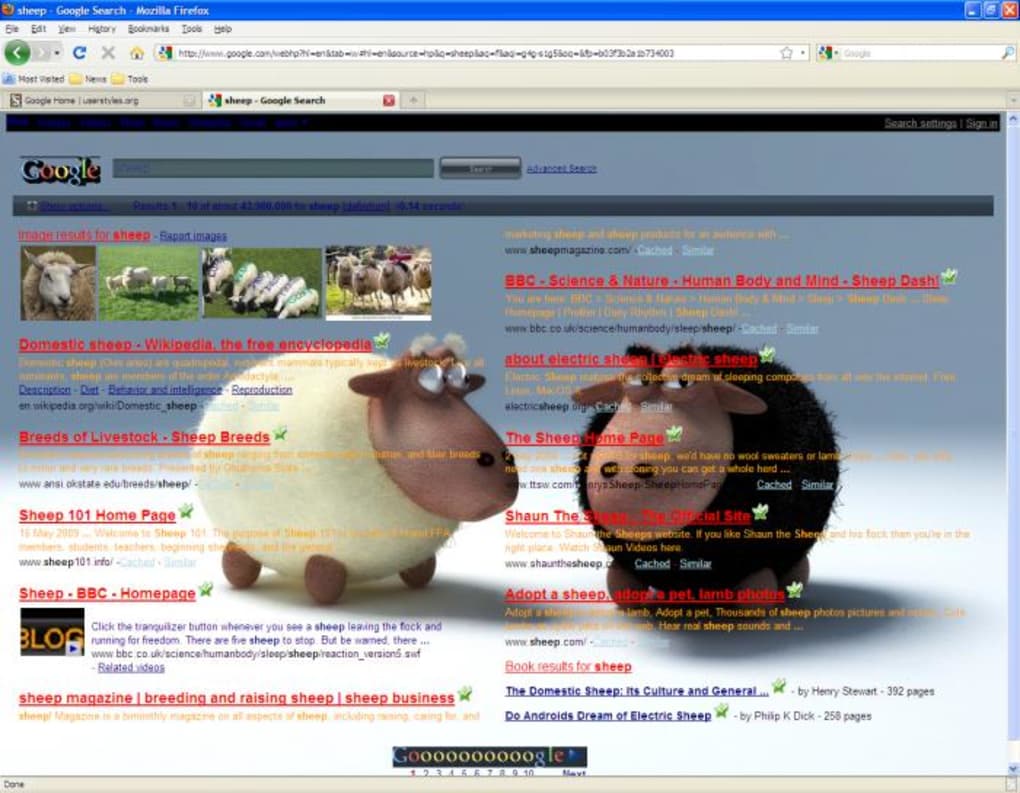
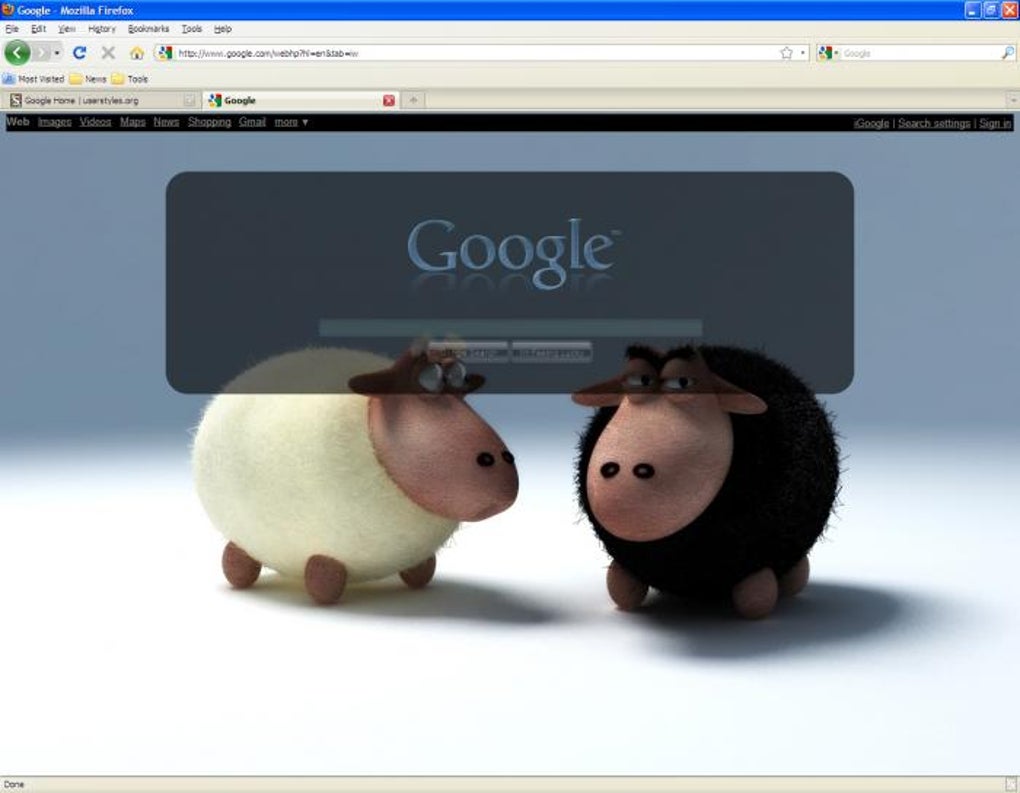
Stylish – Custom themes for any website is a free browser extension that lets you completely redesign the look of the sites you visit. Developed by the community behind Userstyles.org, Stylish gives you instant access to a massive library of user‑created CSS themes, ranging from minimalist dark modes to vibrant, artwork‑rich skins. Whether you want to give Google Search a sleek black backdrop, turn Reddit into a pastel wonderland, or simply mute the glare of a bright news site, Stylish makes the transformation possible with a single click.
The extension works by injecting user‑supplied style sheets on top of the original page’s CSS, meaning the underlying content stays untouched while the visual presentation changes. For power users, Stylish also includes a built‑in editor that lets you craft your own styles from scratch, using standard CSS syntax. If you’re not comfortable writing code, the vibrant community on Discord and the extensive theme library provide endless ready‑made options.
In short, Stylish is the go‑to tool for anyone who wants a more personalized, eye‑friendly browsing experience without compromising functionality.
Key Features
- Access to a library of thousands of free, community‑curated themes.
- One‑click installation and activation directly from the browser toolbar.
- Support for Chrome, Edge, Firefox, and Opera with seamless synchronization.
- Built‑in style editor for custom CSS creation and real‑time preview.
- Automatic updates for installed themes, ensuring compatibility with site changes.
- Dedicated Discord community for support, theme requests, and sharing creations.
- Fine‑grained control: apply styles to a single page, an entire domain, or globally.
- Lightweight performance – minimal impact on page load times.
- Secure sandboxed execution, preventing malicious code from affecting your data.
- Export and import of style collections for easy backup or transfer between devices.
Installation & Usage Instructions
Step‑by‑Step Installation
Getting Stylish up and running is straightforward. Visit the official extension store for your browser—Chrome Web Store, Firefox Add‑ons, Edge Add‑ons, or Opera Add‑ons—and search for “Stylish – Custom themes for any website.” Click the “Add to [Browser]” button and confirm any permission prompts. Once installed, the Stylish icon will appear in your toolbar. Pin the icon for quick access by right‑clicking it and selecting “Pin to toolbar.”
Applying a Theme
Navigate to the website you wish to style. Click the Stylish icon; a pop‑up will display the top six community‑recommended themes for that site. If you want more options, select “Find more styles for this site.” This opens the Stylish Library where you can browse, filter by popularity, or search by keywords. To install a style, simply click “Install Style.” The theme is applied instantly, and you’ll see the visual change without reloading the page.
Managing Your Styles
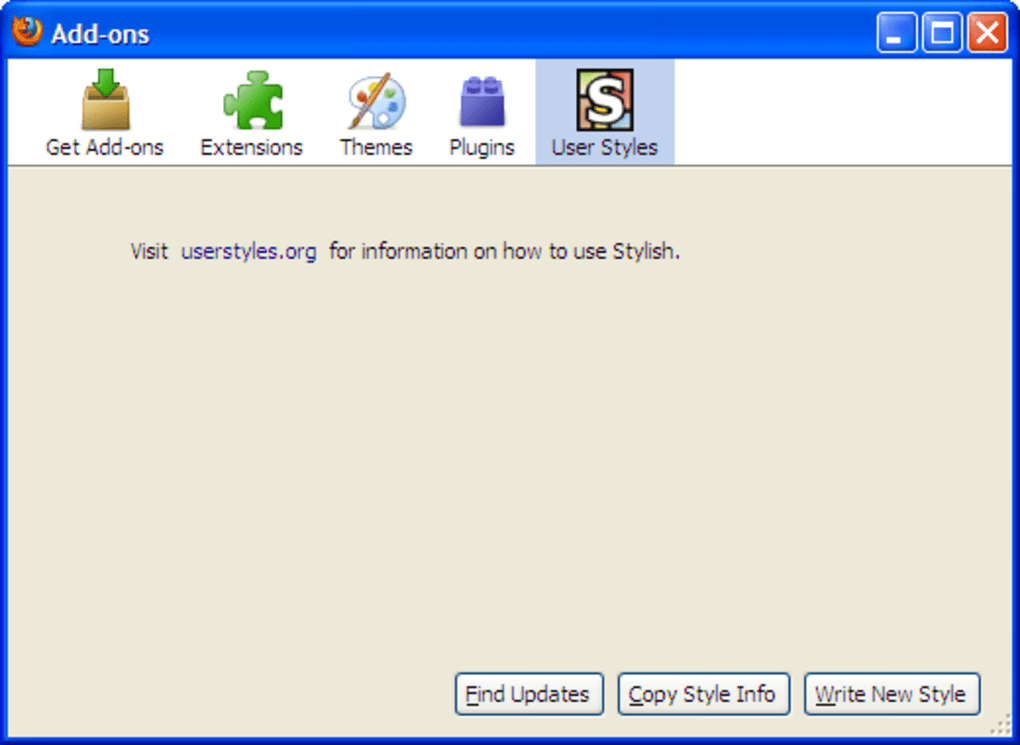
All installed themes are accessible via the “Manage All Styles” button. Here you can enable, disable, edit, or delete individual styles. The interface groups styles by domain, making it easy to see which sites have custom skins. For advanced users, the “Create New Style” button launches the built‑in CSS editor. Paste your code, give the style a name, select the target URLs (single page, domain, or wildcard), and hit “Save.” Your custom style will appear alongside the library‑derived themes.
Synchronizing Across Devices
If you use multiple devices, enable the sync feature in the extension’s settings. Stylish will store your style collection in the cloud (linked to your Userstyles.org account) and automatically apply them whenever you log in on another device. This ensures a consistent look and feel across your entire browsing ecosystem.
Compatibility
Stylish is compatible with the major desktop browsers on Windows, macOS, and Linux, including Google Chrome (version 90+), Mozilla Firefox (version 88+), Microsoft Edge (Chromium‑based, version 90+), and Opera (version 76+). Mobile support is limited; the extension works on Android Chrome via the “Stylus” companion app, but iOS browsers do not currently allow third‑party CSS injection due to platform restrictions. The extension follows each browser’s security model, using sandboxed scripts to ensure that injected styles cannot access your personal data or interfere with the page’s JavaScript execution.
Pros and Cons
Pros
- Vast library of free themes eliminates the need for manual CSS coding.
- One‑click installation makes theme switching effortless.
- Cross‑browser support ensures flexibility for any user.
- Built‑in editor empowers power users to create unique designs.
- Automatic updates keep themes functional as websites evolve.
- Active Discord community provides help, inspiration, and custom requests.
- Lightweight footprint preserves browsing speed and system performance.
Cons
- Mobile browsers (especially iOS) lack full support, limiting on‑the‑go customization.
- Creating custom styles requires knowledge of CSS; no beginner tutorial is included.
- Some popular sites periodically change their markup, causing themes to break until updated.
- Potential for style conflicts if multiple themes target the same selectors.
- Occasional false‑positive security warnings from browsers due to CSS injection.
Frequently Asked Questions
Is Stylish safe to use?
Yes. Stylish runs in a sandboxed environment and only injects CSS, which cannot read or modify your personal data. All themes are community‑reviewed, and the extension is regularly audited for security.
Can I use Stylish on my mobile device?
On Android, you can pair Stylish with the “Stylus” app to apply themes in Chrome. iOS browsers do not support CSS injection, so full functionality is not available on iPhone or iPad.
Do I need to know CSS to use Stylish?
No. The extensive library of pre‑made themes lets you change the look of any site without writing code. However, if you want to craft your own designs, basic CSS knowledge is required.
How does Stylish handle theme updates?
When a theme’s author publishes an update, Stylish automatically notifies you and applies the new version. This ensures the style remains compatible with any changes the website makes.
Can I share my custom styles with others?
Absolutely. After creating a style, you can export it as a file or upload it directly to Userstyles.org, where other users can discover and install your work.
Conclusion & Call to Action
Stylish – Custom themes for any website stands out as a versatile, free tool that transforms mundane web pages into personalized canvases. Its massive community library, straightforward activation, and cross‑browser compatibility make it an excellent choice for both casual users seeking a quick visual refresh and power users eager to experiment with CSS. While mobile support and beginner‑friendly tutorials could be improved, the overall experience is smooth, secure, and highly customizable. If you’re ready to give your favorite sites a fresh look, download Stylish today and start exploring the endless design possibilities.







